Difference between revisions of "Exaltation Forge Tier Transfer"
| (4 intermediate revisions by the same user not shown) | |||
| Line 1: | Line 1: | ||
| + | <b>Idioma/Language:</b> | ||
| + | [[File:US_Flag.gif|30px|link=Exaltation Forge Tier Transfer|alt=English]] | ||
| + | [[File:PT_Flag.gif|30px|link=Exaltation Forge Tier Transfer_PT|alt=Português]] | ||
| + | [[File:ES_Flag.gif|30px|link=Exaltation Forge Tier Transfer_ES|alt=Español]] | ||
| + | <hr> | ||
<i>To go back to the exaltation forge page, [[Exaltation Forge|click here]]</i>. | <i>To go back to the exaltation forge page, [[Exaltation Forge|click here]]</i>. | ||
<hr> | <hr> | ||
The Transfer function allows you to use resources to transfer the tier between items.<br> | The Transfer function allows you to use resources to transfer the tier between items.<br> | ||
| − | It uses a | + | It uses a tiered item as a base to upgrade a classification 4 item. |
| − | This system has 100% chance and can be done with | + | This system has a 100% success chance and can be done with or without convergence. |
| − | Both options | + | Both options require resources and a base item (which will be consumed) for the transfer.<br> |
| − | Make sure that neither the base item | + | Make sure that neither the base item nor the resulting item has any [[Imbuements|imbuement]], [[Item Makers|maker]], or [[Upgrade Tokens|upgrade]] attached to it. |
== Requirements == | == Requirements == | ||
| − | <b> | + | <b>[[file:cross.png|link=]] Without convergence</b> |
* any Tier 2 or above item to be used as a base. | * any Tier 2 or above item to be used as a base. | ||
| − | * any classification 4 item to receive the base item Tier. | + | * any classification 4 item to receive the base item's Tier. |
| − | * [[file:Bar of Gold.gif]] gold | + | * [[file:Bar of Gold.gif|link=]] gold |
| − | * [[file:Exalted Dust.gif]] exalted dust | + | * [[file:Exalted Dust.gif|link=]] exalted dust |
| − | * [[file:Exalted Core.gif]] exalted core | + | * [[file:Exalted Core.gif|link=]] exalted core |
| − | By using this option, the resulting item will decrease one tier.<br> | + | By using this option, the resulting item will decrease by one tier.<br> |
| − | + | This means that if your base item is Tier 4, the resulting item will be Tier 3. | |
<hr> | <hr> | ||
| − | <b> | + | <b>[[file:tick.png|link=]] With convergence</b> |
* any Tier 1 or above item to be used as a base. | * any Tier 1 or above item to be used as a base. | ||
| − | * any classification 4 item to receive the base item Tier. | + | * any classification 4 item to receive the base item's Tier. |
| − | * [[file:Bar of Gold.gif]] gold | + | * [[file:Bar of Gold.gif|link=]] gold |
| − | * [[file:Exalted Dust.gif]] exalted dust | + | * [[file:Exalted Dust.gif|link=]] exalted dust |
| − | * [[file:Exalted Core.gif]] exalted core | + | * [[file:Exalted Core.gif|link=]] exalted core |
By using this option, the resulting item will keep the same tier as the base item.<br> | By using this option, the resulting item will keep the same tier as the base item.<br> | ||
| − | + | This means that if your base item is Tier 4, the resulting item will be Tier 4 as well. | |
| − | == | + | == Transferring Process == |
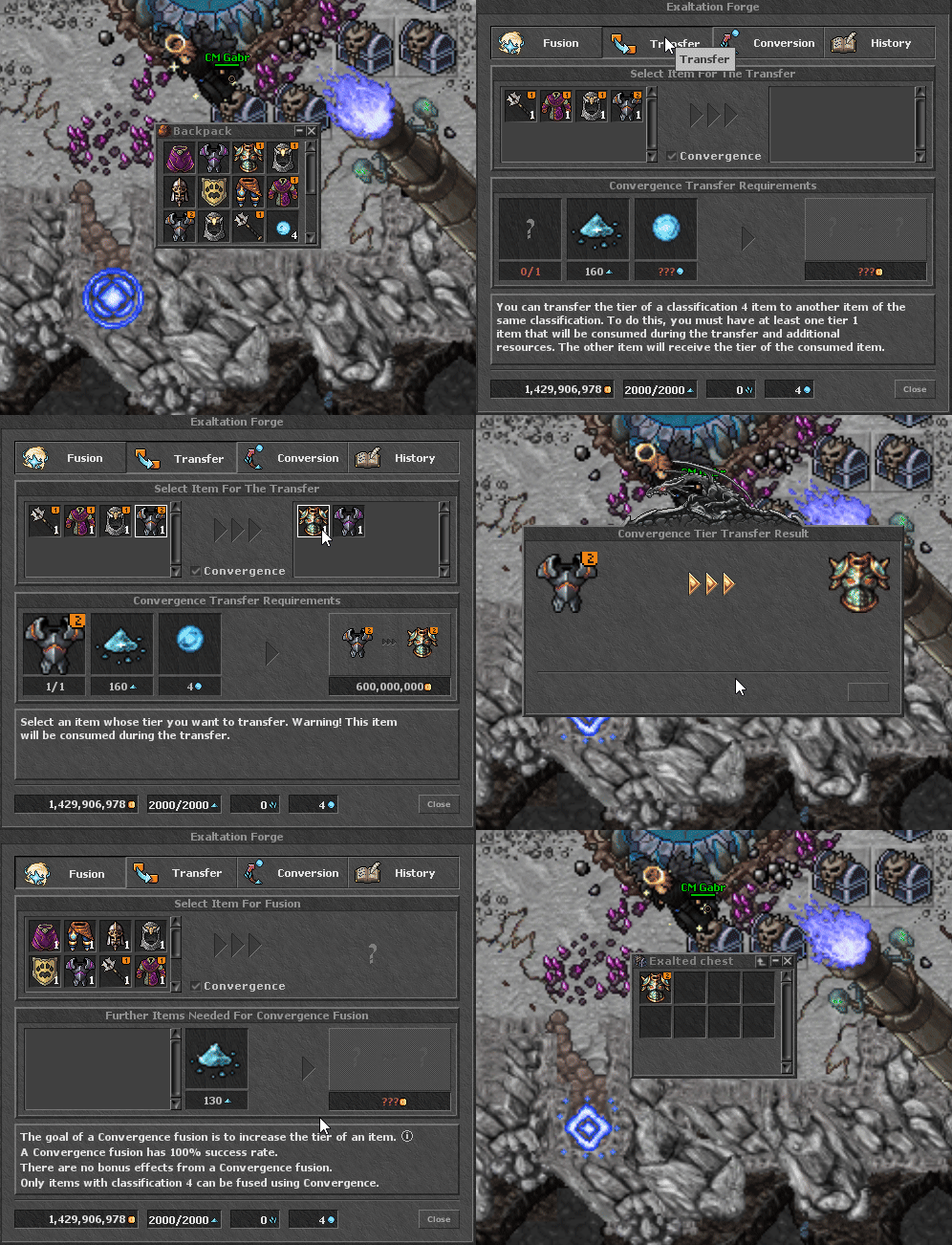
Head to the exaltation forge and select the Transfer tab. | Head to the exaltation forge and select the Transfer tab. | ||
* On the top-left, it will show you all items that you can use as a base item. | * On the top-left, it will show you all items that you can use as a base item. | ||
| − | * On the top-right, it will show you all items that can receive | + | * On the top-right, it will show you all items that can receive its tier. |
| − | * | + | * In the middle, you can toggle the convergence option on or off, as mentioned in the [[Exaltation Forge Tier Transfer#Requirements|requirements]]. |
| − | * The Transfer Requirements will show you the amount of | + | * The Transfer Requirements will show you the amount of resources needed for the operation. |
| − | * | + | * At the bottom, you can see the amount of available resources you have. |
| − | Select the desired | + | Select the desired options and click the confirmation button. |
| − | [[File:Exaltation Forge Tier | + | [[File:Exaltation Forge Tier Transfer2.gif|link=]] |
Latest revision as of 19:34, 20 July 2026
Idioma/Language:


To go back to the exaltation forge page, click here.
The Transfer function allows you to use resources to transfer the tier between items.
It uses a tiered item as a base to upgrade a classification 4 item.
This system has a 100% success chance and can be done with or without convergence.
Both options require resources and a base item (which will be consumed) for the transfer.
Make sure that neither the base item nor the resulting item has any imbuement, maker, or upgrade attached to it.
Requirements
 Without convergence
- any Tier 2 or above item to be used as a base.
- any classification 4 item to receive the base item's Tier.
 gold
gold exalted dust
 exalted core
By using this option, the resulting item will decrease by one tier.
This means that if your base item is Tier 4, the resulting item will be Tier 3.
 With convergence
- any Tier 1 or above item to be used as a base.
- any classification 4 item to receive the base item's Tier.
- gold
- exalted dust
- exalted core
By using this option, the resulting item will keep the same tier as the base item.
This means that if your base item is Tier 4, the resulting item will be Tier 4 as well.
Transferring Process
Head to the exaltation forge and select the Transfer tab.
- On the top-left, it will show you all items that you can use as a base item.
- On the top-right, it will show you all items that can receive its tier.
- In the middle, you can toggle the convergence option on or off, as mentioned in the requirements.
- The Transfer Requirements will show you the amount of resources needed for the operation.
- At the bottom, you can see the amount of available resources you have.
Select the desired options and click the confirmation button.